 Arova
Smart Guest Home
Green Stay: reward guests who save energy
Heating is one of the costs guests can't see and you can't control: a thermostat turned up to 25 °C, a terrace door left open for an hour with the radiators running. Green Stay gives guests a reason to care. They keep the heating under a limit you choose, and they get a discount code for their next stay booked directly with you.
Green Stay in short
- The rule: the thermostat isn't set above your limit, and the doors and windows you pick don't stay open while the heating is on.
- The guest sees how they're doing on their Smart Guest Home page, on the TV and on an NFC tag page, with the minutes left when something is wrong.
- The reward: a single-use code, sent after the stay once your cleaning team's report has 3 stars or more.
- You see every stay and how it ended in one list.
You get lower bills and a reason for the guest to book the next stay directly with you rather than through a booking platform. The guest gets a real discount for something simple.
1. What you need
| What | Why | If you don't have it |
|---|---|---|
| A property rented as a whole | There's one thermostat for the house, so one guest is responsible for it. | Green Stay can't be turned on for a property rented per room. |
| Smart Guest Home on | The guest's page is where the rule and the warnings appear. | The guest has nowhere to follow the stay. |
| A connected thermostat (Salus iT500) | Arova reads the set temperature, and whether the heating is running. | Only the doors and windows count, whether or not the heating is on. |
| Tuya door and window sensors | Arova knows what's open and since when. | Only the thermostat counts. |
| The cleaning app | The cleaning report (1–5 stars) decides whether the code is issued. | No code is ever issued: it waits for a report. |
| Self Booking | The code is used on your booking page. | The guest has nowhere to use the code. |
| Email, WhatsApp or SMSLink | The way the code reaches the guest. | The code still appears on their Smart Guest Home page. |
2. Setting it up, step by step
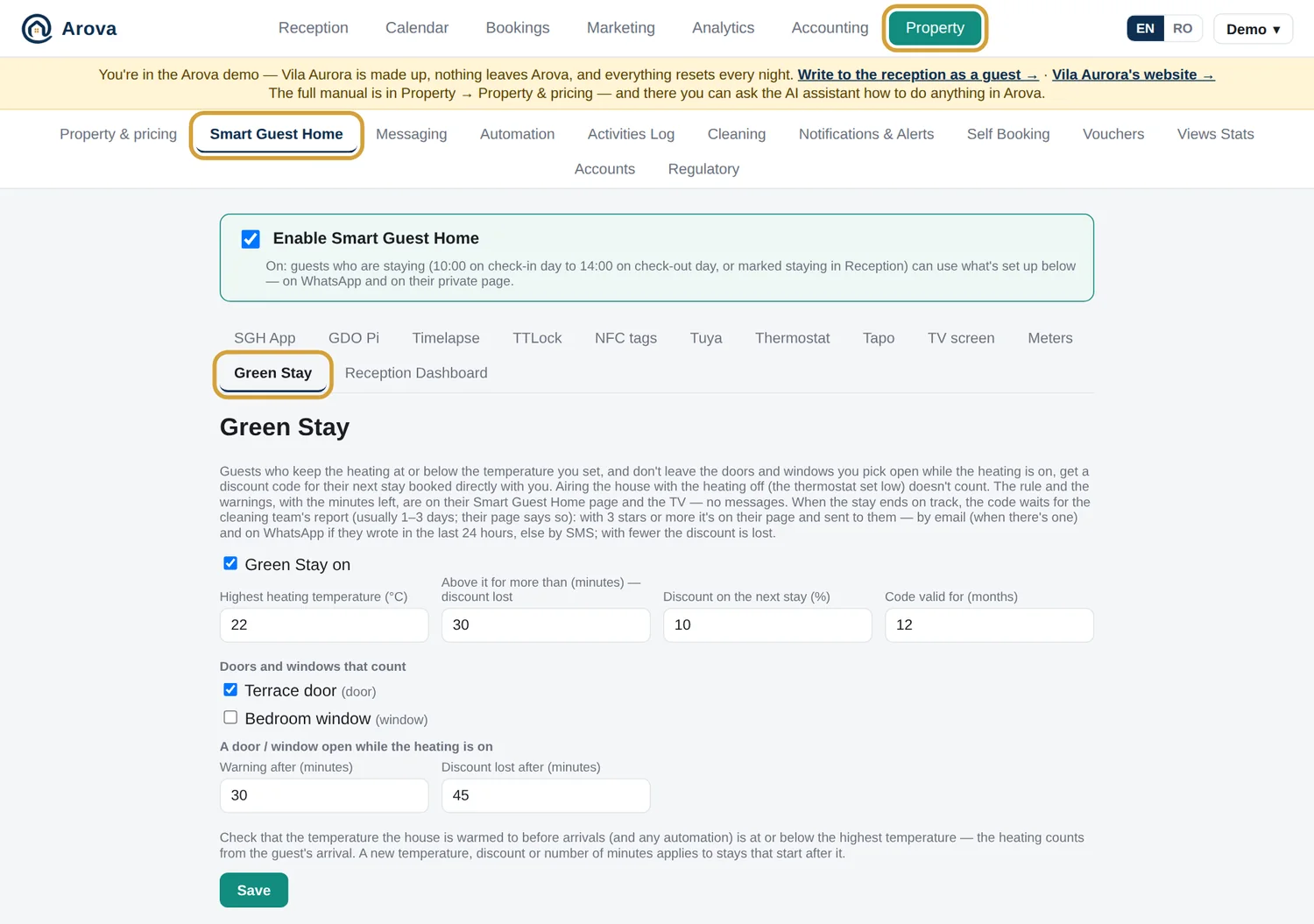
Property → Smart Guest Home → Green Stay
Step 1: name your door and window sensors
Property → Smart Guest Home → Tuya → Doors
Tick the sensors you use, give each a clear name and say whether it's a door or a window, then Save doors. Guests see these names, so "Terrace door" beats "Sensor 3". On their page, the names are translated into the guest's language.
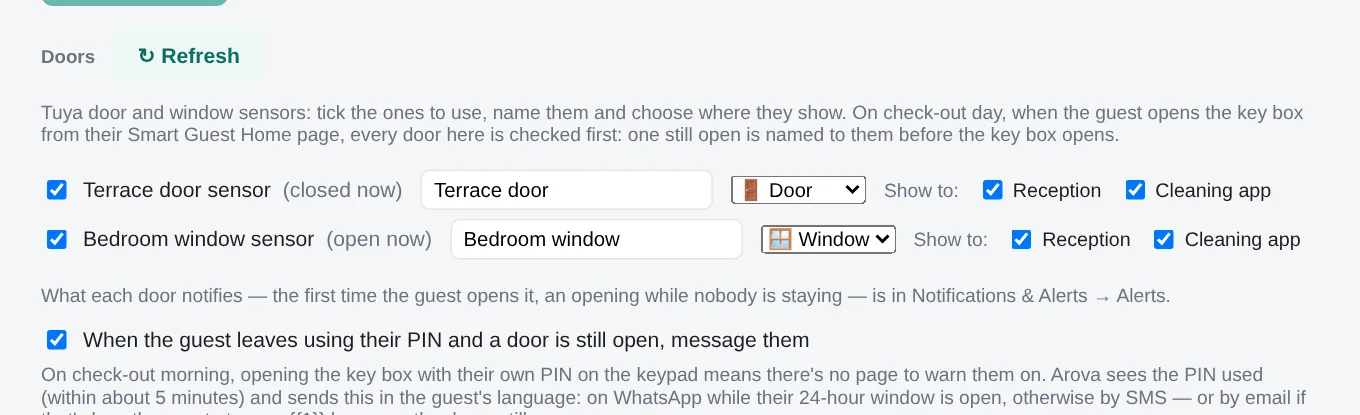
Step 2: set the rule
Back in the Green Stay tab, tick Green Stay on and fill in the form:
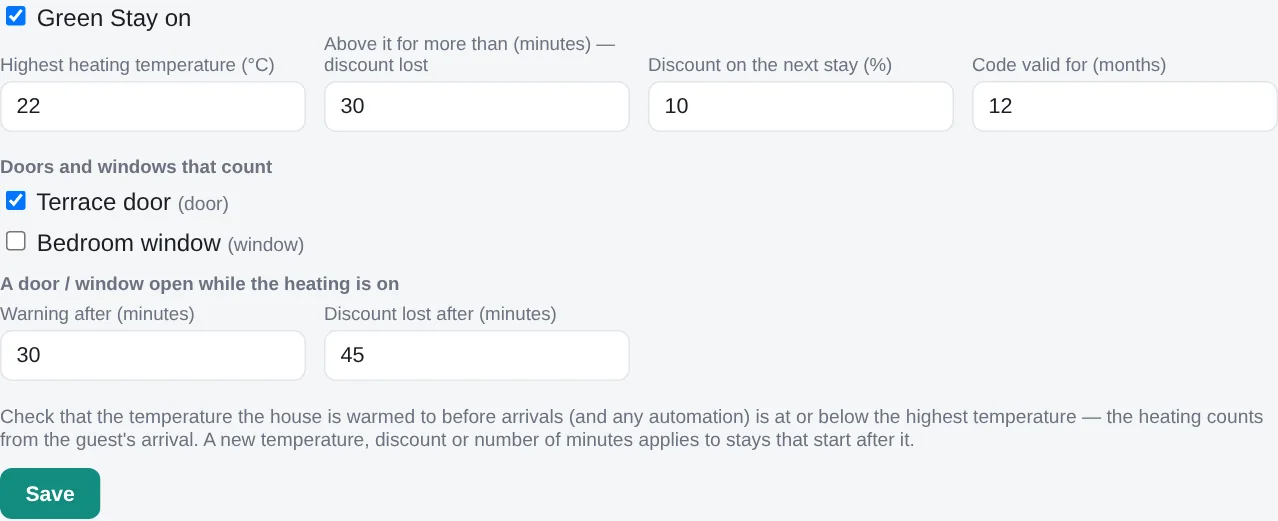
| Setting | Default | Allowed | What it does |
|---|---|---|---|
| Highest heating temperature (°C) | 22 | 10–30, in 0.5° steps | The limit. Setting the thermostat exactly to it is fine. |
| Above it for more than (minutes) — discount lost | 30 | 5–240 | How long the thermostat may stay above the limit. |
| Discount on the next stay (%) | 10 | up to 50 | The value of the code. |
| Code valid for (months) | 12 | 1–36 | Counted from the day the code is issued. |
| Doors and windows that count | none | your sensors | Only those you tick are watched. |
| Warning after (minutes) | 30 | 1–240 | A door or window open this long with the heating on: the guest's page and TV warn them. |
| Discount lost after (minutes) | 45 | 2–480, more than the warning | Still open after this long: the discount is lost. |
Then press Save.
Step 3: see what your guest will see
Under the form, Simulate a stay opens the real guest page and the TV as your next booking will see them, in the state you choose: on track, a door open, heating too high, discount lost, waiting for the cleaning report, or code earned. It's only available to your team, and the buttons on the simulated page do nothing, so you can't open a gate or change the heating by accident.

Step 4 (optional): the TV slide and an NFC tag
- TV: in Smart Guest Home → TV screen, keep the Green Stay slide ticked.
- NFC tag: in Smart Guest Home → NFC tags, choose New tag and set Opens to Green Stay, then write the link onto a sticker. Good places are next to the thermostat and on the terrace door.
3. Exactly what counts, and what doesn't
Green Stay runs from the guest's arrival until they leave. With a connected key box, "arrival" is when they actually arrive. Without one, it's 10:00 on check-in day. The stay ends when they leave on check-out morning, or at 14:00 on check-out day at the latest. Arova checks every 2 minutes and reads the thermostat at most every 4, so a count can be off by a few minutes.
Two different things are measured:
- The set temperature, not the room temperature. A room at 23 °C with the thermostat set to 22 °C breaks nothing. A cold room with the thermostat set to 25 °C does.
- Doors and windows count only while the thermostat is actually heating. Each opening counts from the later of two moments: when it was opened, and when the heating was seen running.
Here's what that means in practice, with the default settings (22 °C, 30 minutes, warning at 30, lost at 45):
| What the guest does | What happens |
|---|---|
| Sets the thermostat to 22 °C | Nothing: it's within the limit. |
| Sets it to 24 °C, lowers it to 22 °C after 20 minutes | A warning with the minutes left, then it clears. The discount is kept, and the 30 minutes start again from zero next time. |
| Sets it to 24 °C and leaves it for more than 30 minutes | The discount is lost. |
| Opens the terrace door with the heating running, closes it after 20 minutes | Nothing: no warning yet, and the count is over. |
| Leaves it open for 35 minutes with the heating running | A warning from minute 30. Closing it, or lowering the heating so it stops, keeps the discount. |
| Leaves it open for 45 minutes with the heating running | The discount is lost. |
| Turns the thermostat down and airs the house for two hours | Nothing: the heating isn't running. Airing the house this way is allowed. |
| Leaves a door open while the thermostat stops and restarts by itself | The count starts again each time the heating stops. |
If the thermostat doesn't answer, the doors wait for the next check, so a connection problem on your side doesn't cost the guest the discount.
4. Where the guest sees if they're on track
Green Stay sends no messages during the stay. The guest follows it in these four places.
On the Smart Guest Home page
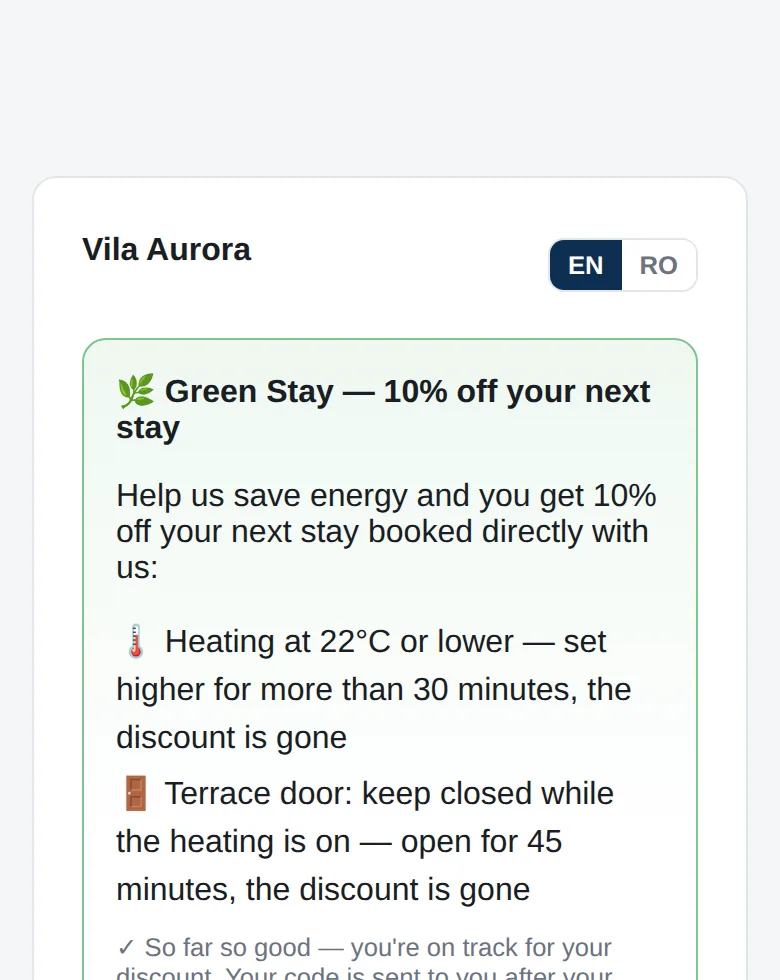
The Green Stay card explains the deal and how the stay is going. It's shown in the guest's language.
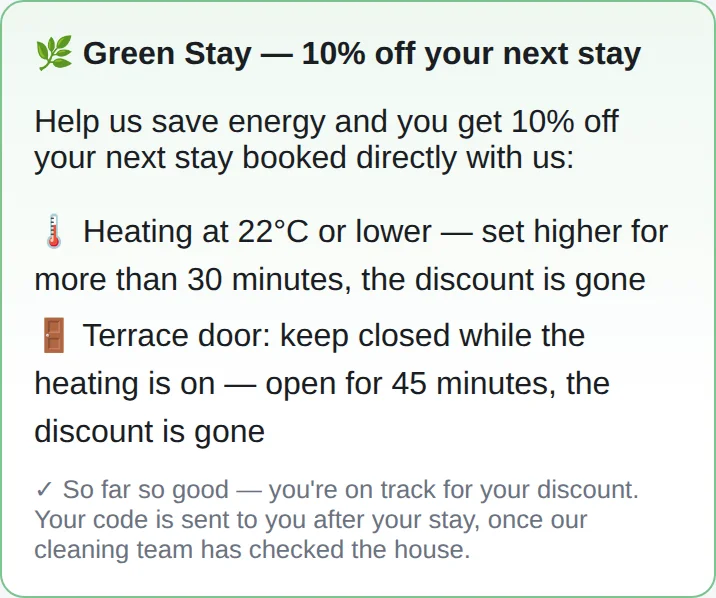
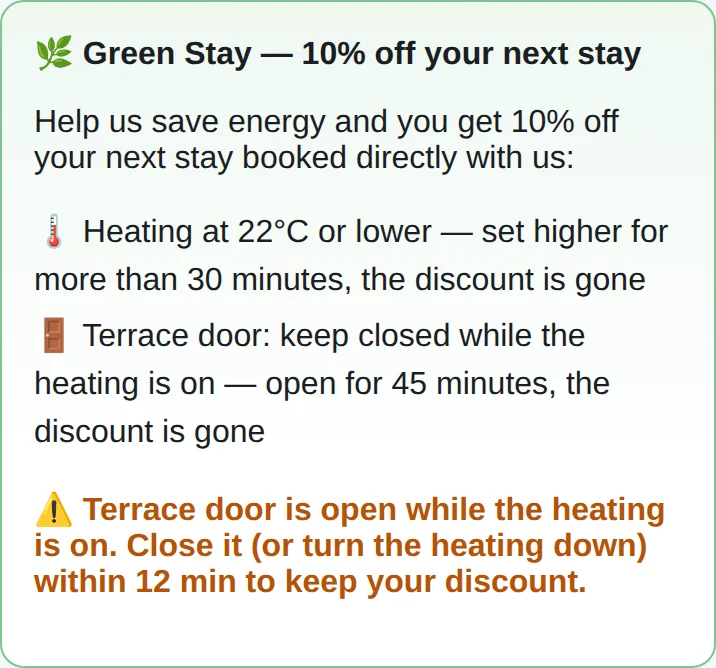
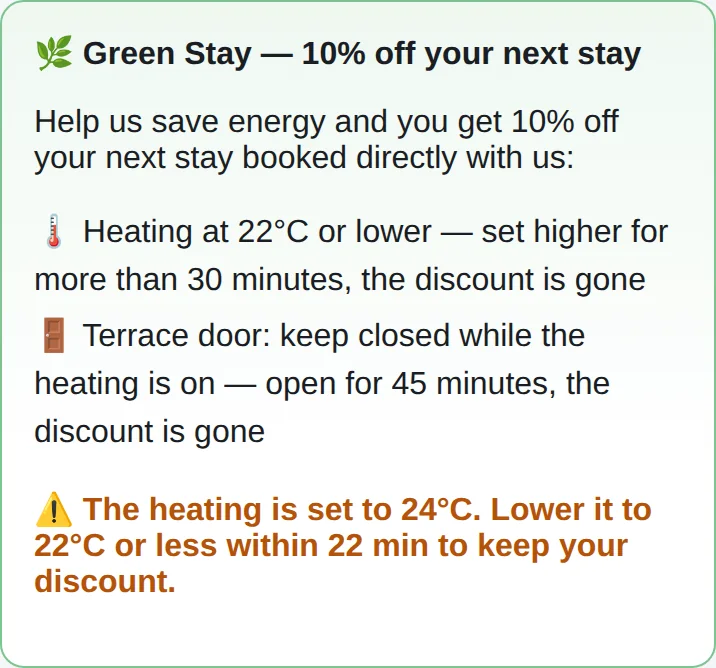
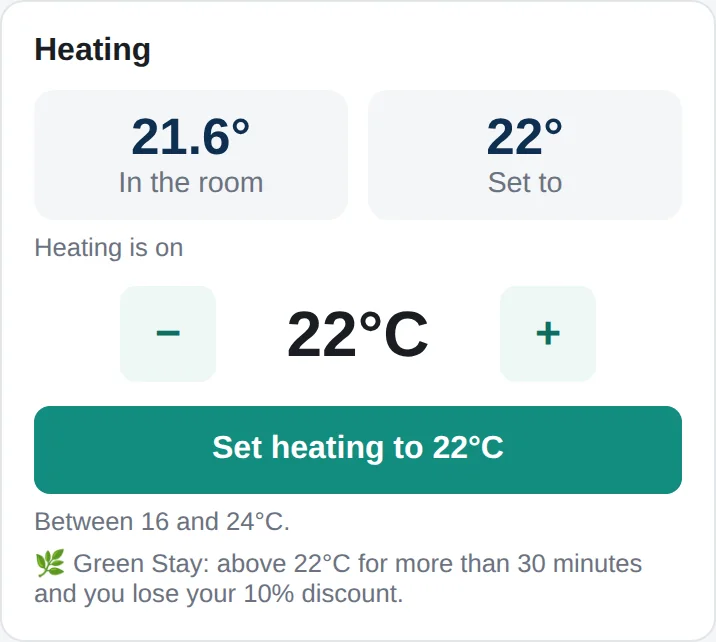
Once the discount is lost, the card disappears from this page.
On the TV
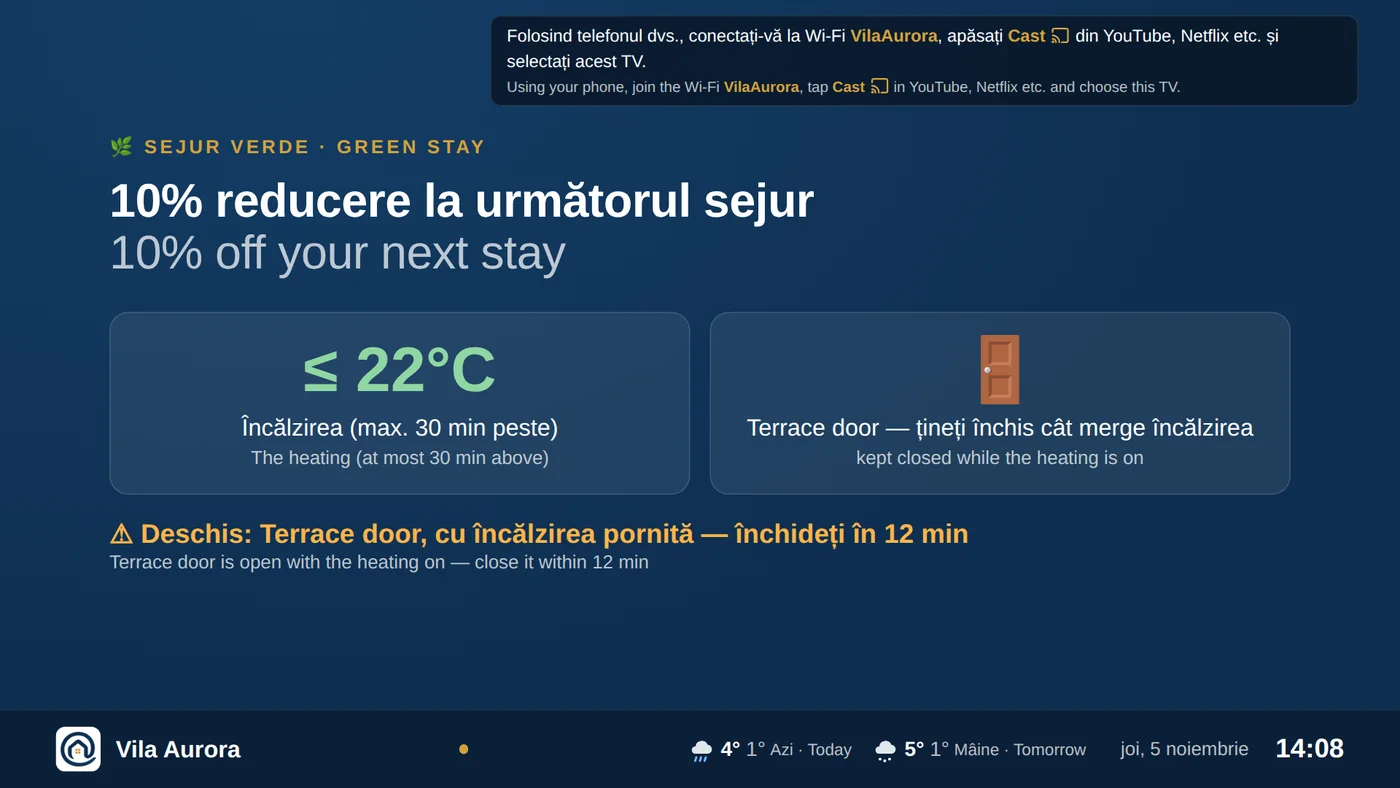
A Green Stay slide in the slideshow shows the rule and the same status, in Romanian and English. There's no slide once the discount is lost, or once the stay is over.
On an NFC tag
Touching the sticker opens a page on any phone with no login, in Romanian or English with a switch between them. It shows the rule and, during a stay, how it's going, refreshing every 30 seconds. On this page the countdown appears as soon as a door counts, without waiting for the warning minutes. The page never shows the guest's name or code. If the discount has been lost, it says why. Try the demo's tag page.
When they open the gate
If a staying guest opens the gate with the heating above your limit, the confirmation adds: "If you are leaving for a while, please consider lowering the temperature from your Smart Guest Home app. That makes a real difference. Thank you!" This doesn't appear on check-in or check-out day.
5. After the stay: how the code is earned and sent
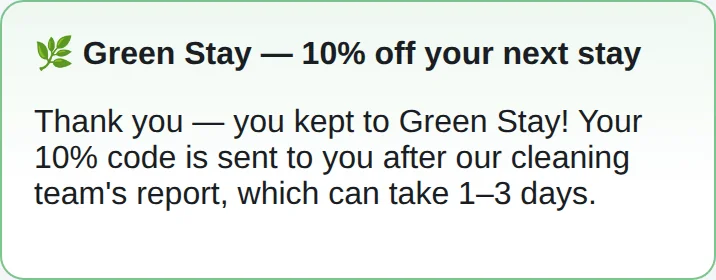
- The stay ends on track. The guest's page says the code comes after the cleaning team's report, which can take 1–3 days. Nothing is sent yet.
- Your cleaning team sends the report from the cleaning app, with 1 to 5 stars. It goes automatically to the booking that checked out last.
- Arova waits an hour, so the cleaner can still correct the stars.
- 3 stars or more: the code is created. With fewer, the discount is lost and no code is sent.
- The guest gets the code, a single-use
GREEN-XXXXXX, on their Smart Guest Home page. It's also sent by email when you have their address, and to their phone: on WhatsApp if their 24-hour window is open, otherwise by SMS. The message is in the guest's language.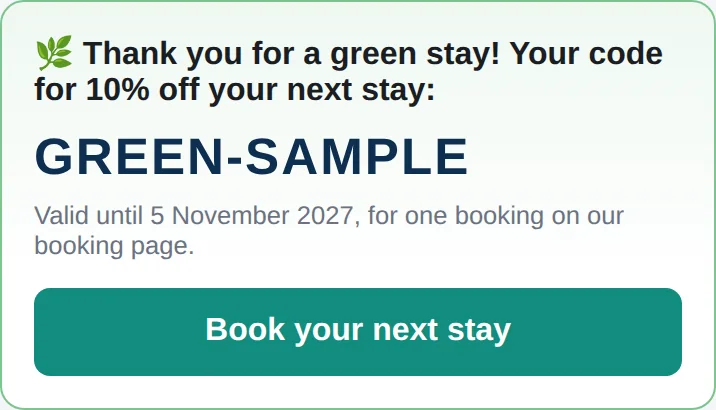
- They use it on your booking page: Have a discount voucher? → the code → Apply. It works once, and the proforma shows the discount on its own line.
6. Where you see the results
At the bottom of the Green Stay tab, Stays lists each stay with the rule it had and how it ended:
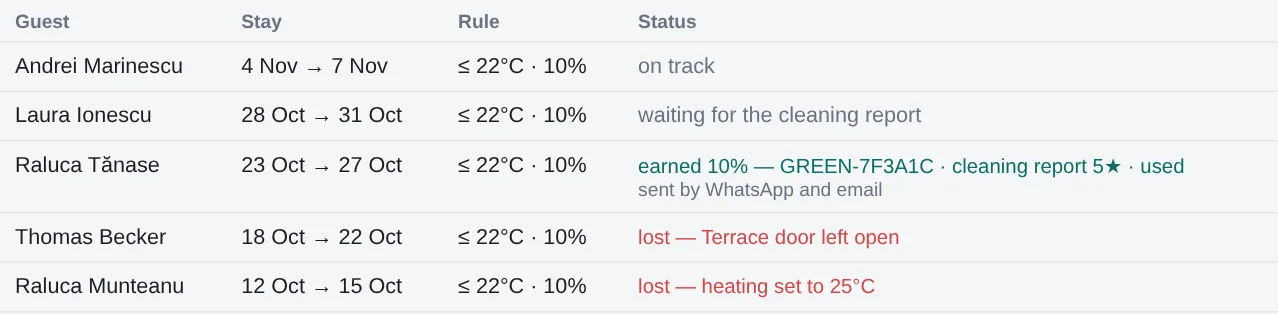
This list is where Green Stay codes appear. They aren't in Property → Vouchers, which only shows the vouchers you create yourself.
The Activities Log records the same events on the stay, as Green Stay discount lost (with the reason), Green Stay kept to the end and Green Stay discount earned (with the code and how it was sent).
7. Tips before you turn it on
- Check how you pre-heat. The heating counts from the guest's arrival. If you warm the house to 24 °C for arrivals, or an automation does, with a limit of 22 °C, the guest's 30 minutes start the moment they arrive. Keep pre-heating at or below the limit.
- Choose a limit guests can live with. A limit people find too cold means lost discounts and complaints, not savings.
- Align the guest thermostat range. In Smart Guest Home → Thermostat → What guests can set, a maximum equal to your limit stops guests going over it from their page. It doesn't stop anyone using the wall thermostat.
- Only tick doors that matter. The door to the terrace, yes. A bathroom window people open after a shower, probably not.
- Make sure the cleaning team sends a report after each stay. Without one, the code waits indefinitely.
- Make the deal visible. The TV slide and a tag next to the thermostat remind guests at the moment they're deciding.
8. Questions and answers
What if I change the settings during a stay?
A new temperature, discount or number of minutes applies to stays that start afterwards. Each stay keeps the rule it started with. The list of doors isn't kept per stay, so a change there applies right away.
What if I turn Green Stay off during a stay?
That stay is no longer checked. If it's still on track when it ends, it goes on to the cleaning report and can still earn its code.
The guest kept the rule but got no code. Why?
Look at the stay in the Stays list. "Waiting for the cleaning report" means no report has reached that booking. In Property → Cleaning → Cleaning reports, check whether it was matched to the right booking, and use Match to correct it. If the code was earned but couldn't be sent, the reason is shown under the stay, and the code is still on the guest's page.
Can a lost discount be recovered?
No: there's no button for that, and once lost, the stay stays lost. If you want to make it up to a guest, create a voucher in Property → Vouchers.
Does a cancelled booking get anything?
No. Its Green Stay record is dropped.
Does it work for a property rented per room?
No. Green Stay needs one thermostat for one guest, so it only works for a property rented as a whole.
For the reference version of every option, see Green Stay in the Arova manual.